
Margin Master Handbook
- Prerequisites
- Firewall and Network Requirements
- Microsoft Edge Download Block
- SQL Server Authentication Setup for IT Administrators
- Antivirus and Endpoint Security Exclusions
- SQL Server Tools
- Install or Upgrade SQL Server Express
- Install or Upgrade SQL Server Management Studio
- Database Connection Setup
- Database Creation
- Database Restore
- Transfer Settings from Database
- Connecting a Second Computer
- A Tour of the Main Window
- The Menus
- The Button Row
- The Main Data Grid
- The Summary Section
- Banners and Badges
- The Options Window
- Store Configuration
- Miscellaneous
- Export Options
- Vendor Settings
- POS / Connections Tabs
- Background Service
- AI Assistant (Experimental)
- How POS Import Works
- Supported Point-of-Sale Systems
- Data Import Workflows
- RockSolid POS Import
- Epicor Eagle FTP Import
- Epicor MySQL Compass Import
- Transact POS Import
- Paladin POS Import
- Falcon POS Import
- Spruce POS Import
- Bistrack POS Import
- RockSolid Max POS Import
- ECS POS Import
- Prosperity POS Import
- Catalyst POS Import
- Westlake POS Import
- MI9 POS Import
- AS/400 POS Import
- CounterWorks POS Import
- Dimension POS Import
- PacSoft POS Import
- ProStix POS Import
- Sympac POS Import
- Propello POS Import
- EagleVision POS Import
- MySQL/Compass Connection Configuration
- ECI VPN Requirement (Spruce, RockSolid MAX)
- Propello POS Integration Guide
- Troubleshooting: Epicor Import Brought In 0 SKUs
- PACE POS Import
- Advantage POS Import
- General Store POS Import
- J-3 POS Import
- KeyStroke POS Import
- AutBusSystem POS Import
- Tomax POS Import
- Enterprise POS Import
- Computakey POS Import
- Redisell POS Import
- DART POS Import
- MIB POS Import
- Substruct POS Import
- DMAS POS Import
- RODS POS Import
- Procom POS Import
- Agility POS Import
- Acumen POS Import
- Cruise POS Import
- LSandE POS Import
- Retalix POS Import
- DIBCorp POS Import
- GMROI POS Import
- ECi Advantage POS Import
- Sunray POS Import
- ActivantAutomotive POS Import
- IBS POS Import
- Versys POS Import
- RMS POS Import
- TAMS POS Import
- Integrasoft POS Import
- Dynamic POS Import
- Microsoft ARS POS Import
- CDS POS Import
- Spartan POS Import
- Nitterhouse POS Import
- Jeds POS Import
- Theisens POS Import
- Emery Jensen POS Import
- SMS Pro POS Import
- Burdens POS Import
- Intact POS Import
- Bloom Retail POS Import
- NCR Counterpoint POS Import
- Horizon POS Import
- Cloud Vendor Data Sync
- Data Aging and Freshness Warnings
- Resetting Vendor and POS Data
- Rebuild Data and Rebuild Selection Lists
- Troubleshooting Vendor Sync
- Understanding the Strategy Hierarchy
- Pricing Strategies
- Creating a Strategy Step
- Updating and Deleting Steps
- Reviewing a Strategy and Running It
- Shared (Premade) Strategies
- SKU-Level Exceptions
- Manage Custom Groups
- Strategy Execution Cloud Tracking
- Importing from Excel
- Cost Break Analysis
- Cost Break Strategies
- Min/Max Strategies
- Strategy Backup & Restore
- Add Items from Catalog
- Store Grouping
- Data Diagnostics and Missing Index Recommendations
- System Diagnostics
- Margin Master Cannot Save Settings
- SQL Server 2025 Express vs. Full License
- Support Issue Management
- Catalog Lookup
- What's New After an Update
- Version History
- Documentation and the Help Buttons
- Chat with Support
- CTLD — Do It Best Catalog File
- MARGIN_MASTER — Ace Catalog File
- PCDITEMXREF — Do It Best SKU Classification File
- SAP_ZONE_PRICE_MARGIN_MASTER — Ace Zone Pricing File
- PCDPRODCLASS — Do It Best Product Classification Hierarchy File
- SAP_STORE_DEPT_ZONE_MARGIN_MASTER — Ace Store Zone Assignment File
- Taxonomy — Ace Product Classification File
- Mapp_Pricing — Ace MAP & IMAP Pricing File
- margin_mstr_plano — Ace Planogram File
On This Page
Cloud Vendor Data Sync
What is this?
Margin Master keeps your local database up to date with the latest product catalog and pricing information from your vendor. This process -- called Cloud Vendor Data Sync -- downloads new and changed records from the Margin Master cloud servers to your local SQL Server. It is incremental, meaning only data that has changed since your last sync is downloaded.
Walk through it in the app: guide 3003 — Updating your Ace Hardware data (Ace Hardware stores) or guide 3004 — Updating your Do-it Best data (Do-it Best stores). Margin Master can walk you through these steps live: turn on Training / Guide Mode from the Help menu, then type 3003 into the Lessons & Guides box — or ask Margin Master support to run it with you.
Supported Vendors
| Vendor | What is synced | Key Data |
|---|---|---|
| Ace Hardware | 6 tables | Catalog, zone pricing, planograms, store-department-zone mappings, taxonomy, MAPP pricing |
| True Value | In development | True Value is selectable as your primary vendor; catalog and pricing sync for True Value members is being built out and will be documented here alongside Do it Best |
| Do it Best | 5 tables | Catalog, price level rounding, SKU classification, product classification, GTIN/UPC |
| Orgill | 1 table | GTIN/UPC data only |
| United Hardware | 1 table | GTIN/UPC data only |
| Emery Jensen | 6 tables (Ace catalog) | Same catalog and zone data as Ace Hardware, keyed to the Emery Jensen zone |
The vendor is chosen once, on Tools > Options > Store Information (see Store Configuration), and everything else - the menu wording, the vendor tab in Options, the columns in the grid - follows from it.
How to Sync
Starting a Sync
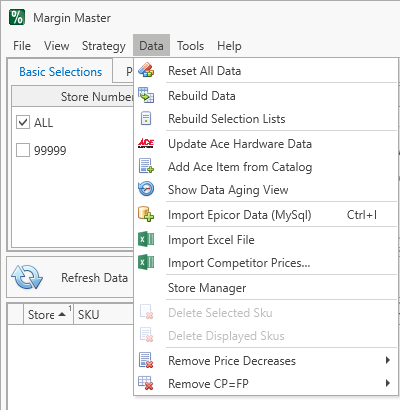
- From the main menu, click Data > Get Vendor Data
- The menu item text changes based on your vendor (e.g., "Update Ace Hardware Data", "Update Do it Best Data")
- Margin Master shows a progress screen immediately and connects to the Margin Master cloud
- Progress is displayed in the splash screen with current sync status
- When complete, the main data grid refreshes with the updated information
If You Already Synced Today
Vendor catalogs are published once a day, so syncing again the same day usually downloads data you already have and then rebuilds your tables for nothing. If today's data is already in place, Margin Master asks first:
data was already updated today at 8:33 AM.
Updating again downloads the catalog and rebuilds your tables, which can take several minutes.
Are you sure you want to update data again?
Choose Yes to sync anyway -- the prompt never blocks you, it only confirms. The scheduled background update applies the same rule and simply skips a vendor sync that has already been done for the day, so it will not interrupt you to rebuild data that has not changed.
This check looks at your actual catalog tables, not just the date of the last sync. If you reset your data, restore an older backup, or the tables are otherwise empty, no prompt appears and the sync runs normally -- which is exactly when you need it most.
Do-it Best: because DIB publishes Monday-Friday, a Friday sync still counts as current through the weekend.
What Happens During Sync
For each vendor table:
- Preparation -- Margin Master makes sure your local database is ready to receive the data, and sets it up automatically if it is not.
- Incremental Download -- Only records that have changed since your last sync are downloaded. Margin Master remembers where the last sync left off.
- Data Merge -- Downloaded records are merged into your local data. New records are added; changed records are updated.
- Removed Items -- Records that have been removed from the vendor catalog are marked as deleted but not physically removed from your database.
After Sync Completes
After vendor data is synced, Margin Master automatically:
- Applies your zone-specific pricing (Ace Hardware)
- Updates MSU retail pricing (Do it Best, if applicable)
- Rebuilds your pricing data from the updated vendor data
- Rebuilds the selection panel filters with new data
This runs sequentially and automatically -- you do not need to take any action.
Tip: For Ace Hardware, zone 99999 represents National Pricing -- the base price before zone-specific adjustments.
Sync Frequency
Tip: Sync vendor data regularly -- ideally daily or before each pricing session -- to ensure you are working with the latest catalog and pricing information.
There is no automatic sync schedule. You must initiate syncs manually from the Data menu.
Common Questions
Q: How long does a sync take? A: The first sync downloads all data and may take several minutes depending on your internet speed. Subsequent syncs are incremental (only changes) and are typically much faster.
Q: Do I need internet access to sync? A: Yes. Cloud vendor data sync requires an active internet connection to the Margin Master cloud servers.
Q: My sync seems stuck -- what should I do? A: Check your internet connection. If the connection is fine, wait a few minutes -- large syncs can take time. If it remains stuck, close and reopen Margin Master and try again.
Q: Will syncing overwrite my custom pricing? A: No. Vendor sync updates the vendor catalog and reference data. Your pricing strategies, custom groups, and SKU-level exceptions are not affected.
Q: I see "zone 99999" in my data -- what is this? A: Zone 99999 is Ace Hardware's National Pricing zone. It represents the default retail price before any zone-specific adjustments are applied.