
Margin Master Handbook
- Prerequisites
- Firewall and Network Requirements
- Microsoft Edge Download Block
- SQL Server Authentication Setup for IT Administrators
- Antivirus and Endpoint Security Exclusions
- SQL Server Tools
- Install or Upgrade SQL Server Express
- Install or Upgrade SQL Server Management Studio
- Database Connection Setup
- Database Creation
- Database Restore
- Transfer Settings from Database
- Connecting a Second Computer
- A Tour of the Main Window
- The Menus
- The Button Row
- The Main Data Grid
- The Summary Section
- Banners and Badges
- The Options Window
- Store Configuration
- Miscellaneous
- Export Options
- Vendor Settings
- POS / Connections Tabs
- Background Service
- AI Assistant (Experimental)
- How POS Import Works
- Supported Point-of-Sale Systems
- Data Import Workflows
- RockSolid POS Import
- Epicor Eagle FTP Import
- Epicor MySQL Compass Import
- Transact POS Import
- Paladin POS Import
- Falcon POS Import
- Spruce POS Import
- Bistrack POS Import
- RockSolid Max POS Import
- ECS POS Import
- Prosperity POS Import
- Catalyst POS Import
- Westlake POS Import
- MI9 POS Import
- AS/400 POS Import
- CounterWorks POS Import
- Dimension POS Import
- PacSoft POS Import
- ProStix POS Import
- Sympac POS Import
- Propello POS Import
- EagleVision POS Import
- MySQL/Compass Connection Configuration
- ECI VPN Requirement (Spruce, RockSolid MAX)
- Propello POS Integration Guide
- Troubleshooting: Epicor Import Brought In 0 SKUs
- PACE POS Import
- Advantage POS Import
- General Store POS Import
- J-3 POS Import
- KeyStroke POS Import
- AutBusSystem POS Import
- Tomax POS Import
- Enterprise POS Import
- Computakey POS Import
- Redisell POS Import
- DART POS Import
- MIB POS Import
- Substruct POS Import
- DMAS POS Import
- RODS POS Import
- Procom POS Import
- Agility POS Import
- Acumen POS Import
- Cruise POS Import
- LSandE POS Import
- Retalix POS Import
- DIBCorp POS Import
- GMROI POS Import
- ECi Advantage POS Import
- Sunray POS Import
- ActivantAutomotive POS Import
- IBS POS Import
- Versys POS Import
- RMS POS Import
- TAMS POS Import
- Integrasoft POS Import
- Dynamic POS Import
- Microsoft ARS POS Import
- CDS POS Import
- Spartan POS Import
- Nitterhouse POS Import
- Jeds POS Import
- Theisens POS Import
- Emery Jensen POS Import
- SMS Pro POS Import
- Burdens POS Import
- Intact POS Import
- Bloom Retail POS Import
- NCR Counterpoint POS Import
- Horizon POS Import
- Cloud Vendor Data Sync
- Data Aging and Freshness Warnings
- Resetting Vendor and POS Data
- Rebuild Data and Rebuild Selection Lists
- Troubleshooting Vendor Sync
- Understanding the Strategy Hierarchy
- Pricing Strategies
- Creating a Strategy Step
- Updating and Deleting Steps
- Reviewing a Strategy and Running It
- Shared (Premade) Strategies
- SKU-Level Exceptions
- Manage Custom Groups
- Strategy Execution Cloud Tracking
- Importing from Excel
- Cost Break Analysis
- Cost Break Strategies
- Min/Max Strategies
- Strategy Backup & Restore
- Add Items from Catalog
- Store Grouping
- Data Diagnostics and Missing Index Recommendations
- System Diagnostics
- Margin Master Cannot Save Settings
- SQL Server 2025 Express vs. Full License
- Support Issue Management
- Catalog Lookup
- What's New After an Update
- Version History
- Documentation and the Help Buttons
- Chat with Support
- CTLD — Do It Best Catalog File
- MARGIN_MASTER — Ace Catalog File
- PCDITEMXREF — Do It Best SKU Classification File
- SAP_ZONE_PRICE_MARGIN_MASTER — Ace Zone Pricing File
- PCDPRODCLASS — Do It Best Product Classification Hierarchy File
- SAP_STORE_DEPT_ZONE_MARGIN_MASTER — Ace Store Zone Assignment File
- Taxonomy — Ace Product Classification File
- Mapp_Pricing — Ace MAP & IMAP Pricing File
- margin_mstr_plano — Ace Planogram File
On This Page
Epicor Eagle FTP Import
What is this?
The Epicor Eagle FTP import downloads a proprietary binary inventory file from your Epicor Eagle server via FTP or SFTP and decodes it into Margin Master for pricing analysis. This is the standard import method for Epicor Eagle stores that pair with Ace Hardware or Emery Jensen vendor data.
Import File Format
Epicor Eagle uses a proprietary binary format that is not human-readable.
- File name:
IN(no file extension) - Format: Fixed-width binary with byte-level field encoding
- Delivery: Downloaded automatically via FTP or SFTP from the Eagle server
- Total columns: 89 fields decoded from the binary data
Key Fields Decoded
| Field | Description |
|---|---|
| SKU | Item SKU number |
| Store | Store identifier (decoded from single ASCII character) |
| Department | Department code |
| Class | Class code |
| Description | Primary item description |
| Description 2 | Secondary item description |
| Retail Price | Current retail price |
| Cost | Item cost |
| Replacement Cost | Replacement cost |
| Quantity On Hand | Current inventory quantity |
| Product Group | Product group code |
| History periods | Monthly sales history (13 periods) |
| Velocity | Sales velocity code |
| Primary Vendor | Primary vendor code |
| Alternate Vendor | Alternate vendor code |
| Competitor prices | Competitor price fields (5) |
| User fields | Custom user-defined fields |
| Zone pricing fields | Zone-specific pricing data |
How Import Works
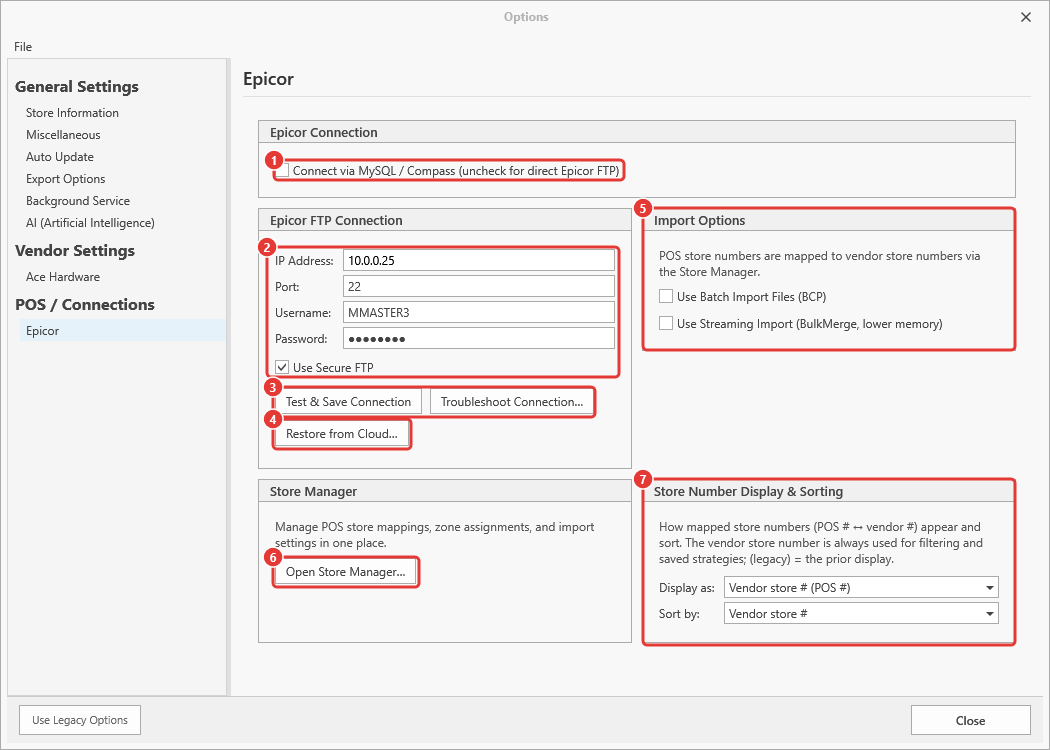
Connect via MySQL / Compass - leave unchecked for the direct Epicor FTP connection.
IP Address, Port, Username, Password and Use Secure FTP - the Eagle server credentials.
Test & Save Connection / Troubleshoot Connection...
Restore from Cloud... - pull the connection saved for this store.
Import Options - Batch Import Files (BCP) and Streaming Import.
Open Store Manager... - POS-to-vendor store mapping.
Store Number Display & Sorting.
Margin Master connects to your Epicor Eagle server using the FTP or SFTP credentials configured in Options.
It downloads the binary file named
INfrom the server.The binary file is decoded field by field at the byte level to extract all 89 columns of inventory data.
Store numbers are translated from single ASCII characters (A-Z) to their corresponding numeric store IDs.
The decoded data is loaded directly into Margin Master's database.
Per-store main tables are built by joining the Epicor POS data with the Ace vendor catalog data.
Post-processing applies additional enrichment including Ace Direct SKU conversion, MAP pricing enforcement, and zone pricing adjustments.
Re-Importing a Previously Downloaded File
If you need to re-import data without downloading from the Eagle server again (for example, when troubleshooting or when the Eagle server is unavailable), you can reprocess a previously downloaded file:
- Navigate to the Epicor download folder:
C:\ProgramData\RetailerSoft\MarginMaster\Epicor\ - Open the subfolder for today's date (e.g.,
Downloads_20260408). - Find the file named
INdecoded.bak— this is the backup of the last successfully imported file. - Rename
INdecoded.baktoINdecoded(remove the.bakextension). - Click Import Data in Margin Master.
- A prompt will appear: "An existing INdecoded file was found. Would you like to re-import this file instead of downloading from FTP?"
- Click Yes to re-import the file without connecting to the Eagle server.
No Eagle server connection required. When you choose to re-import an existing file, Margin Master skips all FTP connection steps entirely. This is useful when the Eagle server is offline or unreachable.
Clicking No will attempt a fresh download. If you decline the re-import, Margin Master will try to connect to the Eagle server via FTP. If the server is unavailable, you will see an error message.
Troubleshooting
| Symptom | Likely cause | What to do |
|---|---|---|
| No Files Found when you choose Get POS Data | The export is not in the Import Path (Tools > Options > Miscellaneous), or its name does not match the pattern above | Check the path and the file name; Margin Master reads only the current folder, not sub-folders |
| The same file is imported again and again | The previous import's file was not renamed | After a successful import the file is renamed to NAME[ext].BAK; a file that keeps its name did not import - read the error dialog |
| 0 records or far fewer than expected | The export covers the wrong store, or the store is not matched in the Store Manager | Open Store Manager and check the store's row; re-export from the point of sale |
| Columns land in the wrong fields | The export layout changed | Contact Margin Master support with the file |
| Import finishes but the grid does not change | The rebuild was postponed (the Click to update data badge is showing) | Click the badge, or Data > Rebuild Data |
Every import failure shows one error dialog; the log under File > Utilities > Show Log Files has the detail to send to support.
Main Table Processing Mode
The Epicor tab under Tools > Options > POS / Connections has one setting, Use a single main table (one row per SKU per store). It chooses how the main tables are laid out; it does not change what the strategies do or the prices they produce. It is offered on both Epicor import routes, this FTP import and the MySQL/Compass import.
- Off (the default) - multi table processing. Margin Master builds one main table per store. Selecting a store picks that store's table.
- On - single main table processing. Margin Master builds one table with one row per SKU per store. Selecting a store filters that table by store number instead of choosing a table, and one set of indexes replaces one set per store.
Changing the setting does nothing until you close the Options window. You are then asked to confirm, and the confirmation names every main table that will be replaced. If you answer Yes, Margin Master builds the new table first and removes the old ones only once the build has succeeded, so a failed rebuild leaves everything as it was. No keeps the current mode; Cancel returns to Options.
Either way the rebuild reads the Epicor data already on this computer (it does not download the file again), builds each store's rows exactly as that store's own table is built, applies the vendor catalog, zone pricing and MAP pricing store by store afterwards as the multi table build does, and discards all current pricing work - future prices, applied rules and locks. Re-run your strategies afterwards. Later imports rebuild the single table in the same way. Rows the export files under the store * (Epicor's all-stores marker, typically coupons) are left out of the single table; multi table processing does not use them either.
Store grouping on the FTP import keeps multi table processing for now. With Use Store Grouping? on (Store Information tab), the single main table cannot be selected on this import route; turn store grouping off first, or keep multi table processing. The Compass import supports both.
Tips
Store letters map to store numbers. Epicor Eagle identifies stores using single ASCII characters (A, B, C, etc.). Margin Master automatically converts these to their numeric equivalents based on your store configuration.
The file has no extension. The import file is simply named
INwith no file extension. This is normal for Epicor Eagle exports.
FTP credentials are configured in Options. Go to Options, then the Epicor tab (with Connect via MySQL / Compass unchecked) to set your Epicor Eagle FTP server address, username, and password. Both standard FTP and SFTP are supported.
Ace Direct SKUs are handled automatically. Items with SKU numbers ending in "D" (Ace Direct items) have the suffix stripped during post-processing so they match correctly with Ace catalog data.
Zone pricing is applied after import. If your store has zone-specific pricing configured, Margin Master will apply zone pricing overrides from the synced Ace zone data after the main tables are built.
Common Questions
Q: What vendor data does Epicor Eagle use? A: Epicor Eagle pairs with Ace Hardware or Emery Jensen vendor data. Your Ace/EJ catalog must be synced from the cloud before building main tables.
Q: What is the difference between FTP and MySQL Compass import for Epicor?
A: FTP import downloads the binary IN file directly from the Eagle server. MySQL Compass reads from a local MySQL data warehouse on your network. Both produce the same result. Use whichever method your store has configured.
Q: Why do I see letters instead of store numbers in Epicor? A: Epicor Eagle uses single characters (A-Z) as store identifiers. Margin Master translates these to numeric store numbers automatically.
Q: What are the two import modes? A: Direct mode is the standard mode that loads the data straight into Margin Master's database. BCP mode is a troubleshooting option that writes intermediate files; use it only when Margin Master support asks you to.
Q: What is MAP pricing? A: MAP (Minimum Advertised Price) enforcement ensures that future prices do not go below manufacturer-set minimums. This is applied automatically during post-processing for Ace Hardware items.