
Margin Master Handbook
- Prerequisites
- Firewall and Network Requirements
- Microsoft Edge Download Block
- SQL Server Authentication Setup for IT Administrators
- Antivirus and Endpoint Security Exclusions
- SQL Server Tools
- Install or Upgrade SQL Server Express
- Install or Upgrade SQL Server Management Studio
- Database Connection Setup
- Database Creation
- Database Restore
- Transfer Settings from Database
- Connecting a Second Computer
- A Tour of the Main Window
- The Menus
- The Button Row
- The Main Data Grid
- The Summary Section
- Banners and Badges
- The Options Window
- Store Configuration
- Miscellaneous
- Export Options
- Vendor Settings
- POS / Connections Tabs
- Background Service
- AI Assistant (Experimental)
- How POS Import Works
- Supported Point-of-Sale Systems
- Data Import Workflows
- RockSolid POS Import
- Epicor Eagle FTP Import
- Epicor MySQL Compass Import
- Transact POS Import
- Paladin POS Import
- Falcon POS Import
- Spruce POS Import
- Bistrack POS Import
- RockSolid Max POS Import
- ECS POS Import
- Prosperity POS Import
- Catalyst POS Import
- Westlake POS Import
- MI9 POS Import
- AS/400 POS Import
- CounterWorks POS Import
- Dimension POS Import
- PacSoft POS Import
- ProStix POS Import
- Sympac POS Import
- Propello POS Import
- EagleVision POS Import
- MySQL/Compass Connection Configuration
- ECI VPN Requirement (Spruce, RockSolid MAX)
- Propello POS Integration Guide
- Troubleshooting: Epicor Import Brought In 0 SKUs
- PACE POS Import
- Advantage POS Import
- General Store POS Import
- J-3 POS Import
- KeyStroke POS Import
- AutBusSystem POS Import
- Tomax POS Import
- Enterprise POS Import
- Computakey POS Import
- Redisell POS Import
- DART POS Import
- MIB POS Import
- Substruct POS Import
- DMAS POS Import
- RODS POS Import
- Procom POS Import
- Agility POS Import
- Acumen POS Import
- Cruise POS Import
- LSandE POS Import
- Retalix POS Import
- DIBCorp POS Import
- GMROI POS Import
- ECi Advantage POS Import
- Sunray POS Import
- ActivantAutomotive POS Import
- IBS POS Import
- Versys POS Import
- RMS POS Import
- TAMS POS Import
- Integrasoft POS Import
- Dynamic POS Import
- Microsoft ARS POS Import
- CDS POS Import
- Spartan POS Import
- Nitterhouse POS Import
- Jeds POS Import
- Theisens POS Import
- Emery Jensen POS Import
- SMS Pro POS Import
- Burdens POS Import
- Intact POS Import
- Bloom Retail POS Import
- NCR Counterpoint POS Import
- Horizon POS Import
- Cloud Vendor Data Sync
- Data Aging and Freshness Warnings
- Resetting Vendor and POS Data
- Rebuild Data and Rebuild Selection Lists
- Troubleshooting Vendor Sync
- Understanding the Strategy Hierarchy
- Pricing Strategies
- Creating a Strategy Step
- Updating and Deleting Steps
- Reviewing a Strategy and Running It
- Shared (Premade) Strategies
- SKU-Level Exceptions
- Manage Custom Groups
- Strategy Execution Cloud Tracking
- Importing from Excel
- Cost Break Analysis
- Cost Break Strategies
- Min/Max Strategies
- Strategy Backup & Restore
- Add Items from Catalog
- Store Grouping
- Data Diagnostics and Missing Index Recommendations
- System Diagnostics
- Margin Master Cannot Save Settings
- SQL Server 2025 Express vs. Full License
- Support Issue Management
- Catalog Lookup
- What's New After an Update
- Version History
- Documentation and the Help Buttons
- Chat with Support
- CTLD — Do It Best Catalog File
- MARGIN_MASTER — Ace Catalog File
- PCDITEMXREF — Do It Best SKU Classification File
- SAP_ZONE_PRICE_MARGIN_MASTER — Ace Zone Pricing File
- PCDPRODCLASS — Do It Best Product Classification Hierarchy File
- SAP_STORE_DEPT_ZONE_MARGIN_MASTER — Ace Store Zone Assignment File
- Taxonomy — Ace Product Classification File
- Mapp_Pricing — Ace MAP & IMAP Pricing File
- margin_mstr_plano — Ace Planogram File
On This Page
How POS Import Works
What is this?
Margin Master prices your items, so it needs your point-of-sale data: every SKU, its cost, its current price, what is on hand and what sold in each of the last twelve months. Getting POS data in is the first of the two data flows a new store sets up (the other is vendor data), and it works one of two ways depending on the point of sale:
| Method | How it works | Point-of-sale systems |
|---|---|---|
| Export file | You (or a scheduled job on the POS) export a file; Margin Master reads it from the Import Path | Most systems - Paladin, Transact, Falcon, Catalyst, Westlake, Mi9, AS/400, Propello, RockSolid (its own data file) and the other file-based guides in this chapter |
| Direct connection | Margin Master connects to the POS database or server and pulls the data itself | Epicor (FTP download or MySQL/Compass), BisTrack Direct Connect, Spruce, RockSolid MAX (when set up to connect instead of exporting), NCR Counterpoint |
Either way you start the import from Data > Get POS Data (Ctrl+I) - the item is named for your system, for example Import Epicor Data - and the import ends by rebuilding the grid.
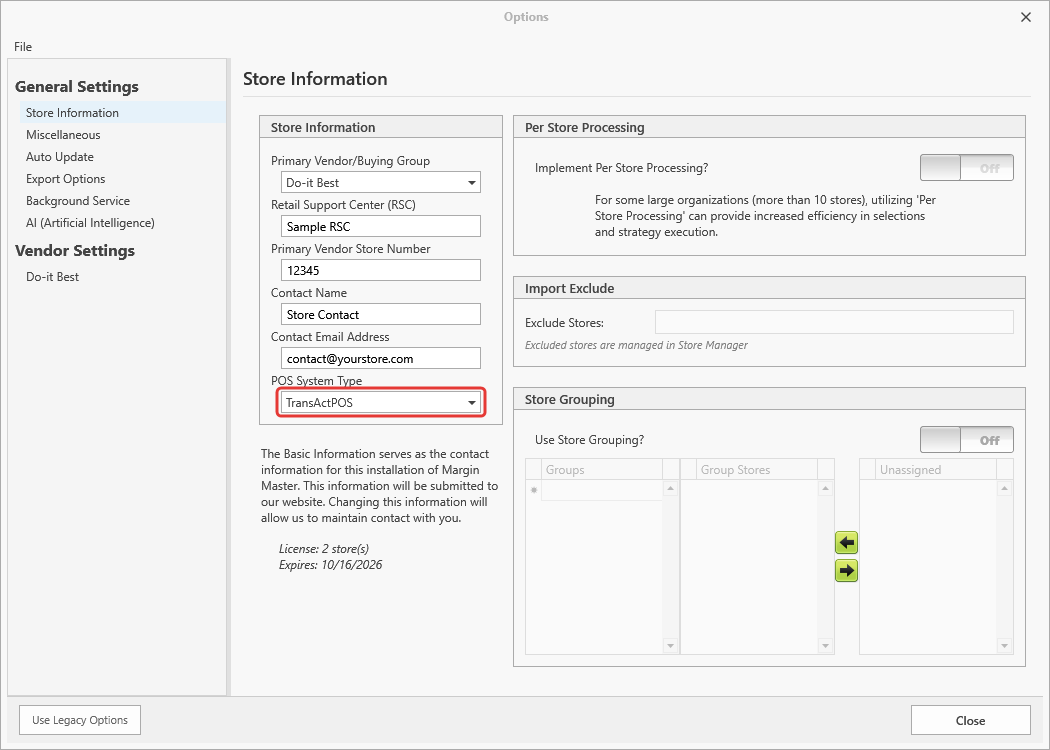
The POS System Type on Tools > Options > Store Information decides everything else: which Options tab appears for the connection, which file pattern is expected, and which guide in this chapter applies to you. The Supported Point-of-Sale Systems page lists every system and links to its guide.
Where files go
File-based imports read from the Import Path on Tools > Options > Miscellaneous. After a
successful import the file is renamed to NAME[ext].BAK so it is not imported twice; backups older
than seven days inside Margin Master's own folder are cleaned up automatically. Margin Master never
deletes a file it did not create, and never touches a folder outside C:\MarginMaster.
What happens after the data arrives
Whatever the source, the same steps follow: the store's rows are matched to the vendor catalog through the Store Manager, zone pricing is applied, the main table is rebuilt and the selection lists are refreshed. On a large database this takes a few minutes; if the rebuild is postponed to keep the window responsive, the Click to update data badge appears.
The remainder of this page summarizes how each system's data gets in - useful when an import does something unexpected. Each system's own guide has the full detail.
POS Systems at a Glance
| POS System | How the data arrives | What you do |
|---|---|---|
| Paladin | Export file (MarginMaster*.txt) |
Save the export into the Import Path, then Data > Get POS Data |
| Transact, Dimension, AS/400, ECS, Prosperity | Export file (*.txt) |
Save the export into the Import Path, then Data > Get POS Data |
| CounterWorks, PacSoft | Export file (*.csv) |
Save the export into the Import Path, then Data > Get POS Data |
| Catalyst, Falcon | Excel export (*.xlsx) |
Save the export into the Import Path, then Data > Get POS Data |
| Westlake | Export file (*Westlake*.txt) |
Save the export into the Import Path, then Data > Get POS Data |
| Mi9 | Export files (MM*.txt, one per store group) |
Save the files into the Import Path, then Data > Get POS Data |
| Propello | Full inventory export (.xlsx) |
Save the export into the Import Path, then Data > Import Propello Data |
| BisTrack | Export file per store (*.txt / *.csv) or BisTrack Direct Connect |
Files: save them into the Import Path. Direct Connect: set it up once on the Bistrack Options tab. Then Data > Get POS Data |
| RockSolid | RockSolid's own data file (.RS), read in place |
Point the Import Path at the RockSolid folder; the RockSolid Options tab checks the required Microsoft Access driver |
| Spruce / SpruceWare.Net | Direct connection to the ECI-hosted database | Add the connection on the Spruce/RockSolid Options tab (needs the ECI VPN) |
| RockSolid MAX | Export file (*Data.txt) or direct connection |
Save the export into the Import Path, or add a connection on the Spruce/RockSolid Options tab |
| Epicor (FTP) | Margin Master downloads the inventory file from your Eagle server by FTP/SFTP | Enter the FTP connection on the Epicor Options tab |
| Epicor (MySQL Compass) | Direct connection to the Compass data warehouse on your network | Check Connect via MySQL / Compass on the Epicor Options tab and enter the connection |
| NCR Counterpoint | Direct connection to the Counterpoint database | Contact Margin Master support to set up the connection |
| Other systems | Export file | See the system's guide on Supported Point-of-Sale Systems |
What each method does
Export files. Margin Master looks in the Import Path for files matching your system's
pattern, checks the columns against your system's layout, removes duplicate SKU/store rows,
splits a multi-store file by store number and loads each store's items. When it finishes, the file
is renamed to .BAK.
BisTrack with many stores. Every store's file is loaded together in one pass, which is much faster than one at a time. If one file fails, the rest of the batch continues and the failed stores are listed in the import summary.
Direct connections. No file is involved. Margin Master uses the connection you saved on your system's Options tab and pulls the current data when you choose Data > Get POS Data.
RockSolid. Margin Master reads RockSolid's .RS data file where RockSolid keeps it, so that
file must not be locked by RockSolid during the import.
After the Import
After any POS import finishes, Margin Master runs the same sequence no matter which system the data came from:
- Ace zone pricing - zone-specific pricing is applied (Ace Hardware stores, when zone data is present).
- Do it Best MSU retail - MSU retail pricing is applied (Do it Best stores, when that data is present).
- Main table rebuild - your items are joined with the vendor catalog to build the main pricing table.
- Selection lists - the selection boxes (product groups, vendors and so on) are refreshed.
- Database tune-up - the database's search indexes are refreshed so the grid stays fast.
Steps 1 and 2 only run when the respective vendor data is present. Steps 3-5 always run when any data changed.
Tips
If an import seems to complete but the main table is not updated, check that the post-import pipeline ran by looking at the status bar messages. Each step logs its name and row count.
BisTrack imports with many stores are significantly faster with the batch pre-load (all files staged in one pass). If one file fails, the rest of the batch continues — failed stores are listed in the import summary.
For RockSolid, the
.RSfile must not be open in another application (locked by RockSolid) when Margin Master imports it. Schedule imports during off-hours or after closing.
Epicor MySQL Compass imports do not require any file export from the POS. The connection runs on-demand from the Import dialog.
Common Questions
Why does importing one POS file update all stores? Some POS systems (like Mi9 and MySQL Compass) export all stores in a single connection or file. Margin Master automatically splits the data by store number during import.
What happens if a file has duplicate SKUs? Each import removes duplicates automatically. When the same SKU appears more than once for the same store, the last occurrence wins. For BisTrack batch imports, duplicates are removed once across all files in a single pass.
Can I re-import the same file twice? Yes — each import replaces the previous import's data for the affected stores.