
Margin Master Handbook
- Prerequisites
- Firewall and Network Requirements
- Microsoft Edge Download Block
- SQL Server Authentication Setup for IT Administrators
- Antivirus and Endpoint Security Exclusions
- SQL Server Tools
- Install or Upgrade SQL Server Express
- Install or Upgrade SQL Server Management Studio
- Database Connection Setup
- Database Creation
- Database Restore
- Transfer Settings from Database
- Connecting a Second Computer
- A Tour of the Main Window
- The Menus
- The Button Row
- The Main Data Grid
- The Summary Section
- Banners and Badges
- The Options Window
- Store Configuration
- Miscellaneous
- Export Options
- Vendor Settings
- POS / Connections Tabs
- Background Service
- AI Assistant (Experimental)
- How POS Import Works
- Supported Point-of-Sale Systems
- Data Import Workflows
- RockSolid POS Import
- Epicor Eagle FTP Import
- Epicor MySQL Compass Import
- Transact POS Import
- Paladin POS Import
- Falcon POS Import
- Spruce POS Import
- Bistrack POS Import
- RockSolid Max POS Import
- ECS POS Import
- Prosperity POS Import
- Catalyst POS Import
- Westlake POS Import
- MI9 POS Import
- AS/400 POS Import
- CounterWorks POS Import
- Dimension POS Import
- PacSoft POS Import
- ProStix POS Import
- Sympac POS Import
- Propello POS Import
- EagleVision POS Import
- MySQL/Compass Connection Configuration
- ECI VPN Requirement (Spruce, RockSolid MAX)
- Propello POS Integration Guide
- Troubleshooting: Epicor Import Brought In 0 SKUs
- PACE POS Import
- Advantage POS Import
- General Store POS Import
- J-3 POS Import
- KeyStroke POS Import
- AutBusSystem POS Import
- Tomax POS Import
- Enterprise POS Import
- Computakey POS Import
- Redisell POS Import
- DART POS Import
- MIB POS Import
- Substruct POS Import
- DMAS POS Import
- RODS POS Import
- Procom POS Import
- Agility POS Import
- Acumen POS Import
- Cruise POS Import
- LSandE POS Import
- Retalix POS Import
- DIBCorp POS Import
- GMROI POS Import
- ECi Advantage POS Import
- Sunray POS Import
- ActivantAutomotive POS Import
- IBS POS Import
- Versys POS Import
- RMS POS Import
- TAMS POS Import
- Integrasoft POS Import
- Dynamic POS Import
- Microsoft ARS POS Import
- CDS POS Import
- Spartan POS Import
- Nitterhouse POS Import
- Jeds POS Import
- Theisens POS Import
- Emery Jensen POS Import
- SMS Pro POS Import
- Burdens POS Import
- Intact POS Import
- Bloom Retail POS Import
- NCR Counterpoint POS Import
- Horizon POS Import
- Cloud Vendor Data Sync
- Data Aging and Freshness Warnings
- Resetting Vendor and POS Data
- Rebuild Data and Rebuild Selection Lists
- Troubleshooting Vendor Sync
- Understanding the Strategy Hierarchy
- Pricing Strategies
- Creating a Strategy Step
- Updating and Deleting Steps
- Reviewing a Strategy and Running It
- Shared (Premade) Strategies
- SKU-Level Exceptions
- Manage Custom Groups
- Strategy Execution Cloud Tracking
- Importing from Excel
- Cost Break Analysis
- Cost Break Strategies
- Min/Max Strategies
- Strategy Backup & Restore
- Add Items from Catalog
- Store Grouping
- Data Diagnostics and Missing Index Recommendations
- System Diagnostics
- Margin Master Cannot Save Settings
- SQL Server 2025 Express vs. Full License
- Support Issue Management
- Catalog Lookup
- What's New After an Update
- Version History
- Documentation and the Help Buttons
- Chat with Support
- CTLD — Do It Best Catalog File
- MARGIN_MASTER — Ace Catalog File
- PCDITEMXREF — Do It Best SKU Classification File
- SAP_ZONE_PRICE_MARGIN_MASTER — Ace Zone Pricing File
- PCDPRODCLASS — Do It Best Product Classification Hierarchy File
- SAP_STORE_DEPT_ZONE_MARGIN_MASTER — Ace Store Zone Assignment File
- Taxonomy — Ace Product Classification File
- Mapp_Pricing — Ace MAP & IMAP Pricing File
- margin_mstr_plano — Ace Planogram File
On This Page
RockSolid POS Import
What is this?
The RockSolid import reads inventory and sales data from a RockSolid POS Microsoft Access database file (.RS) and loads it into Margin Master for pricing analysis. RockSolid pairs with Do it Best vendor data.
Walk through it in the app: guide 4009 — Importing your RockSolid data. Margin Master can walk you through these steps live: turn on Training / Guide Mode from the Help menu, then type 4009 into the Lessons & Guides box — or ask Margin Master support to run it with you.
Import File Format
RockSolid does not use a text file. Instead, Margin Master connects directly to the RockSolid Access database (.RS file) using an OLEDB connection.
- File type: Microsoft Access database (.RS extension)
- Source table:
MMExport(inside the Access database) - Driver required: Microsoft ACE OLEDB 12.0
| # | Field | Description |
|---|---|---|
| 1 | ProductCode | Product code identifier |
| 2 | Description | Item description |
| 3 | AverageCost | Average cost of the item |
| 4 | Retail | Current retail price |
| 5 | Inventory | Current inventory on hand |
| 6 | Department | Department name |
| 7 | Class | Class name |
| 8 | SubClass | Sub-class name |
| 9 | Location | Store location code |
| 10 | Sku | Item SKU (automatically uppercased) |
| 11 | QuantityRank | Sales ranking by quantity |
| 12 | Store | Store number (leading zeros removed) |
| 13-25 | H0 through H12 | Monthly sales history (13 periods) |
How Import Works
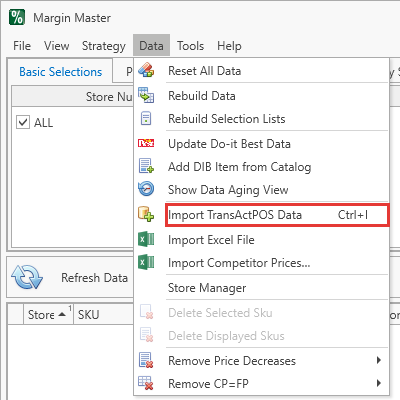
The export file is read from the Import Path set under Tools > Options > Miscellaneous:
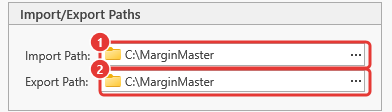
- Margin Master opens the RockSolid Access database (.RS file) using the Microsoft ACE OLEDB 12.0 driver.
- It reads all rows from the
MMExporttable inside the Access database. - SKU values are automatically converted to uppercase for consistency.
- Leading zeros are trimmed from store numbers.
- The data is loaded directly into Margin Master's database (no intermediate text file is created).
- A main table is built for each store.
- Each main table is enriched with Do it Best vendor catalog data for pricing analysis.
Troubleshooting
| Symptom | Likely cause | What to do |
|---|---|---|
| No Files Found when you choose Get POS Data | The export is not in the Import Path (Tools > Options > Miscellaneous), or its name does not match the pattern above | Check the path and the file name; Margin Master reads only the current folder, not sub-folders |
| The same file is imported again and again | The previous import's file was not renamed | After a successful import the file is renamed to NAME[ext].BAK; a file that keeps its name did not import - read the error dialog |
| 0 records or far fewer than expected | The export covers the wrong store, or the store is not matched in the Store Manager | Open Store Manager and check the store's row; re-export from the point of sale |
| Columns land in the wrong fields | The export layout changed | Compare the export's columns with the field list above; contact Margin Master support with the file |
| The 'Microsoft.ACE.OLEDB.12.0' provider is not registered on the local machine | The Access Database Engine is not installed for 64-bit programs | Tools > Options > RockSolid > Install OLEDB Driver; see OLEDB Driver |
| Import finishes but the grid does not change | The rebuild was postponed (the Click to update data badge is showing) | Click the badge, or Data > Rebuild Data |
Every import failure shows one error dialog; the log under File > Utilities > Show Log Files has the detail to send to support.
OLEDB Driver
Margin Master opens the .RS file through the Microsoft.ACE.OLEDB.12.0 driver, part of the Microsoft Access Database Engine. The driver must match the Margin Master program itself, which is 64-bit, so the 64-bit engine is the one that counts even on a computer with 32-bit Office. Without it the import fails with The 'Microsoft.ACE.OLEDB.12.0' provider is not registered on the local machine and the price export to RockSolid fails the same way.
Tools > Options > POS / Connections > RockSolid shows the driver's status (1) and has one button (2):
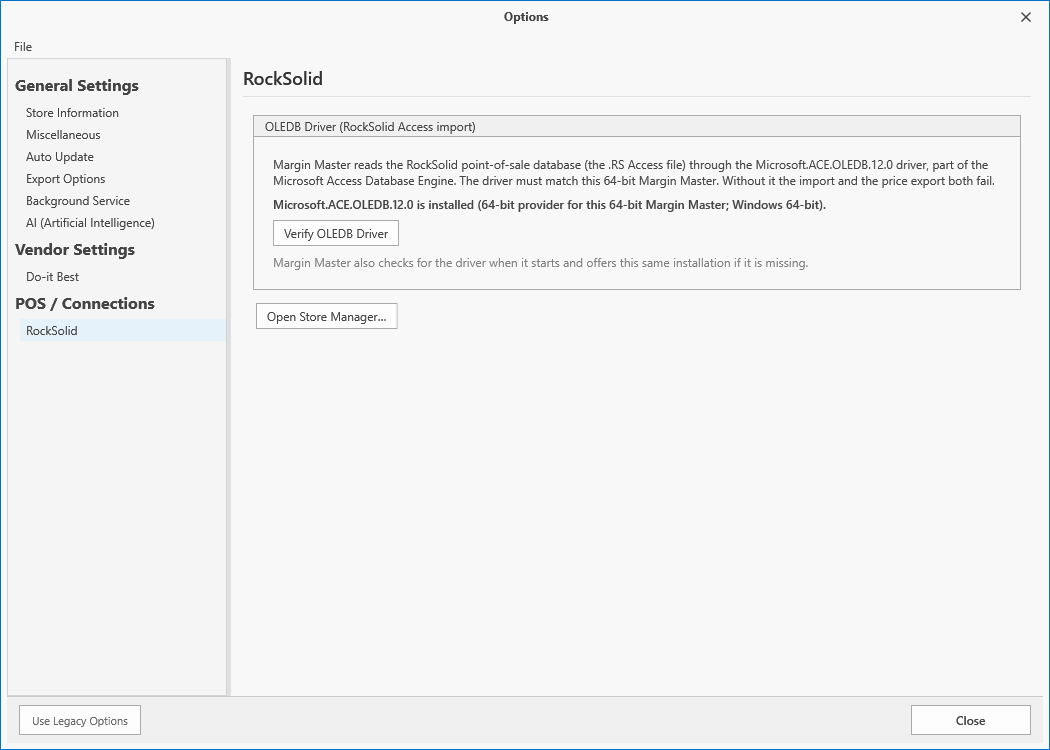
- Install OLEDB Driver (shown when the driver is missing) downloads the 64-bit Access Database Engine 2016 from Microsoft and installs it. Windows asks for administrator permission. Margin Master then checks the driver again and reports the result; a restart of Windows is occasionally required.
- Verify OLEDB Driver (shown when the driver is present) confirms the installation and the bitness it checked.
Margin Master also checks for the driver each day when it starts on a RockSolid store and offers the same installation if the driver is missing. If 32-bit Microsoft Office is installed, the 64-bit engine is installed alongside it; should the installer refuse, ask Margin Master support for the side-by-side procedure.
Tips
Microsoft ACE OLEDB 12.0 driver must be installed. If Margin Master cannot connect to the RockSolid database, open Tools > Options > RockSolid and click Verify / Install OLEDB Driver (see OLEDB Driver below).
The .RS file is a renamed Access database. Even though the extension is
.RS, it is a standard Microsoft Access file that Margin Master reads via OLEDB.
RockSolid also supports export. After pricing analysis, Margin Master can write future prices back to the
MMImporttable in the RockSolid Access database, allowing you to import updated prices into your POS system.
SKU + Store is the unique key. Each record is identified by the combination of SKU and Store number. Duplicate combinations will be overwritten during import.
Common Questions
Q: What vendor data does RockSolid use? A: RockSolid pairs exclusively with Do it Best vendor data. Your Do it Best catalog must be synced before building main tables.
Q: Do I need to export from RockSolid first?
A: Yes. RockSolid must populate the MMExport table in its Access database before Margin Master can read the data.
Q: Why are my store numbers different after import?
A: Margin Master automatically removes leading zeros from store numbers. For example, store 007 becomes 7.
Q: Can I import multiple stores at once?
A: Yes. The MMExport table can contain data for multiple stores. Margin Master will create separate main tables for each store found in the data.