
Margin Master Handbook
Introduction
Part I · Installing
- Prerequisites
- Firewall and Network Requirements
- Microsoft Edge Download Block
- SQL Server Authentication Setup for IT Administrators
- Antivirus and Endpoint Security Exclusions
- SQL Server Tools
- Install or Upgrade SQL Server Express
- Install or Upgrade SQL Server Management Studio
- Database Connection Setup
- Database Creation
- Database Restore
- Transfer Settings from Database
- Connecting a Second Computer
Part II · Introducing the Main Window
- A Tour of the Main Window
- The Menus
- The Button Row
- The Main Data Grid
- The Summary Section
- Banners and Badges
Part III · Initial Configuration
- The Options Window
- Store Configuration
- Miscellaneous
- Export Options
- Vendor Settings
- POS / Connections Tabs
- Background Service
- AI Assistant (Experimental)
- How POS Import Works
- Supported Point-of-Sale Systems
- Data Import Workflows
- RockSolid POS Import
- Epicor Eagle FTP Import
- Epicor MySQL Compass Import
- Transact POS Import
- Paladin POS Import
- Falcon POS Import
- Spruce POS Import
- Bistrack POS Import
- RockSolid Max POS Import
- ECS POS Import
- Prosperity POS Import
- Catalyst POS Import
- Westlake POS Import
- MI9 POS Import
- AS/400 POS Import
- CounterWorks POS Import
- Dimension POS Import
- PacSoft POS Import
- ProStix POS Import
- Sympac POS Import
- Propello POS Import
- EagleVision POS Import
- MySQL/Compass Connection Configuration
- ECI VPN Requirement (Spruce, RockSolid MAX)
- Propello POS Integration Guide
- Troubleshooting: Epicor Import Brought In 0 SKUs
- PACE POS Import
- Advantage POS Import
- General Store POS Import
- J-3 POS Import
- KeyStroke POS Import
- AutBusSystem POS Import
- Tomax POS Import
- Enterprise POS Import
- Computakey POS Import
- Redisell POS Import
- DART POS Import
- MIB POS Import
- Substruct POS Import
- DMAS POS Import
- RODS POS Import
- Procom POS Import
- Agility POS Import
- Acumen POS Import
- Cruise POS Import
- LSandE POS Import
- Retalix POS Import
- DIBCorp POS Import
- GMROI POS Import
- ECi Advantage POS Import
- Sunray POS Import
- ActivantAutomotive POS Import
- IBS POS Import
- Versys POS Import
- RMS POS Import
- TAMS POS Import
- Integrasoft POS Import
- Dynamic POS Import
- Microsoft ARS POS Import
- CDS POS Import
- Spartan POS Import
- Nitterhouse POS Import
- Jeds POS Import
- Theisens POS Import
- Emery Jensen POS Import
- SMS Pro POS Import
- Burdens POS Import
- Intact POS Import
- Bloom Retail POS Import
- NCR Counterpoint POS Import
- Horizon POS Import
- Cloud Vendor Data Sync
- Data Aging and Freshness Warnings
- Resetting Vendor and POS Data
- Rebuild Data and Rebuild Selection Lists
- Troubleshooting Vendor Sync
Part IV · Customizing the Workspace
Part V · Basic Application Functionality
Part VI · Learning Margin Master
- Understanding the Strategy Hierarchy
- Pricing Strategies
- Creating a Strategy Step
- Updating and Deleting Steps
- Reviewing a Strategy and Running It
- Shared (Premade) Strategies
- SKU-Level Exceptions
- Manage Custom Groups
- Strategy Execution Cloud Tracking
Part VII · Advanced Topics
- Importing from Excel
- Cost Break Analysis
- Cost Break Strategies
- Min/Max Strategies
- Strategy Backup & Restore
- Add Items from Catalog
- Store Grouping
Part VIII · Updates, Troubleshooting & Help
- Data Diagnostics and Missing Index Recommendations
- System Diagnostics
- Margin Master Cannot Save Settings
- SQL Server 2025 Express vs. Full License
- Support Issue Management
- Catalog Lookup
- What's New After an Update
- Version History
- Documentation and the Help Buttons
- Chat with Support
Appendix
- CTLD — Do It Best Catalog File
- MARGIN_MASTER — Ace Catalog File
- PCDITEMXREF — Do It Best SKU Classification File
- SAP_ZONE_PRICE_MARGIN_MASTER — Ace Zone Pricing File
- PCDPRODCLASS — Do It Best Product Classification Hierarchy File
- SAP_STORE_DEPT_ZONE_MARGIN_MASTER — Ace Store Zone Assignment File
- Taxonomy — Ace Product Classification File
- Mapp_Pricing — Ace MAP & IMAP Pricing File
- margin_mstr_plano — Ace Planogram File
On This Page
Part III · Chapter 7 — Point of Sale: Connect, Configure, Import, TroubleshootUpdated 2026-09-15
AS/400 POS Import
What is this?
AS/400 is a legacy IBM midrange system still used by some retailers. Margin Master imports AS/400 data exports to build pricing analysis tables.
Import File Format
| Property | Value |
|---|---|
| Delimiter | Comma (,) |
| File pattern | *.txt |
| Header row | Yes (1 row) |
| Total fields | 17 |
How Import Works
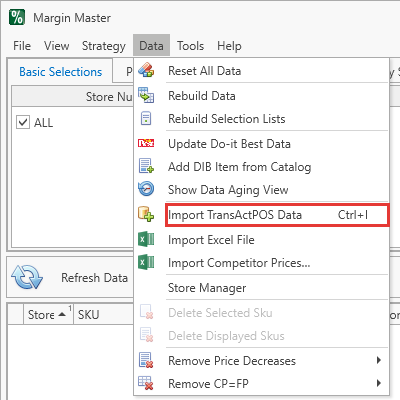
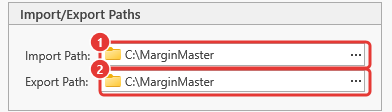
The export file is read from the Import Path set under Tools > Options > Miscellaneous:
- Export your data from the AS/400 system as a comma-delimited
.txtfile with a header row. - Place the file in the configured import folder.
- Margin Master reads and validates the file, then loads the data into its database.
- Margin Master joins the store data with vendor catalog data to build your main pricing analysis table.
Export Columns
| AS/400 Field | Max Length | What it holds |
|---|---|---|
| SKU | 25 | Product identifier |
| STORE | 10 | Store identifier |
| CATEGORY | 50 | Category (used as the Department) |
| DESCRIPTION | 100 | Primary description |
| DESC2 | 100 | Secondary description |
| CurrentPrice | — | Current retail price |
| OnHand | — | Inventory quantity |
| PrimeVendor | 50 | Primary vendor code |
| H0 | — | Current period sales |
| H1–H12 | — | Monthly sales history |
| Cost | — | Product cost |
Troubleshooting
| Symptom | Likely cause | What to do |
|---|---|---|
| No Files Found when you choose Get POS Data | The export is not in the Import Path (Tools > Options > Miscellaneous), or its name does not match the pattern above | Check the path and the file name; Margin Master reads only the current folder, not sub-folders |
| The same file is imported again and again | The previous import's file was not renamed | After a successful import the file is renamed to NAME[ext].BAK; a file that keeps its name did not import - read the error dialog |
| 0 records or far fewer than expected | The export covers the wrong store, or the store is not matched in the Store Manager | Open Store Manager and check the store's row; re-export from the point of sale |
| Columns land in the wrong fields | The export layout changed | Compare the file's header row with Export Columns above; contact Margin Master support with the file |
| Import finishes but the grid does not change | The rebuild was postponed (the Click to update data badge is showing) | Click the badge, or Data > Rebuild Data |
Every import failure shows one error dialog; the log under File > Utilities > Show Log Files has the detail to send to support.
Tips
- Simple field set: AS/400 has one of the more straightforward field layouts. If your export includes the fields listed above with a header row, the import should work without additional configuration.
- Category becomes Department: The AS/400
CATEGORYcolumn is used as the Department in Margin Master.
Common Questions
Q: My AS/400 export uses a different delimiter. Can I change it? A: No. Margin Master expects comma-delimited files for AS/400. You may need to convert your export before importing.
Q: Some of my field values are longer than the max length. What happens? A: Values exceeding the maximum length are truncated during import. For example, a SKU longer than 25 characters will be trimmed to 25.